Overview
Smart Recovery is an application that allows you to implement settings to repair a Windows device that has crashed. You can either use Smart Recovery in the form of a GUI interface or as a command-line tool. It gives you options such as restoring a device’s system configuration and settings to the latest system snapshot or factory settings. Once you have installed Smart Recovery on your remote Windows devices, you can implement the Smart Recovery app from the Radix Device Manager.
Smart Recovery provides you with a command-line tool that can take snapshots, restore the system, change the program settings, and more. You can do this either by using batch files or network scripts.
There are three versions of the Smart Recovery app:
Smart Recovery LTE (or LITE)
This is the simplest version, which only allows you to restore a Windows device to a previous baseline state. You can choose between:
- - Automatic Restore Mode, where the computer undergoes a system restore every time it reboots.
- - Manual Restore Mode, where the computer is restored to the most recently saved baseline state.
Smart Recovery LITE allows only one baseline point.
Smart Recovery DUO
In addition to the Smart Recovery LITE options, this version allows you to choose to restore a Windows device to one of two (= hence the name “DUO”) states:
- - A fixed baseline state (referred to as the “root” baseline point), or
- - A dynamic restore point that you can adjust if you wish.
Smart Recovery PRO
This version of Smart Recovery offers even more options and allows you to restore your computer to
- - A fixed baseline state,
- - A dynamic restore point, or
- - The current snapshot.
The following table describes how to use the Smart Recovery command line tool and how you should modify the command, depending on your version of Smart Recovery:
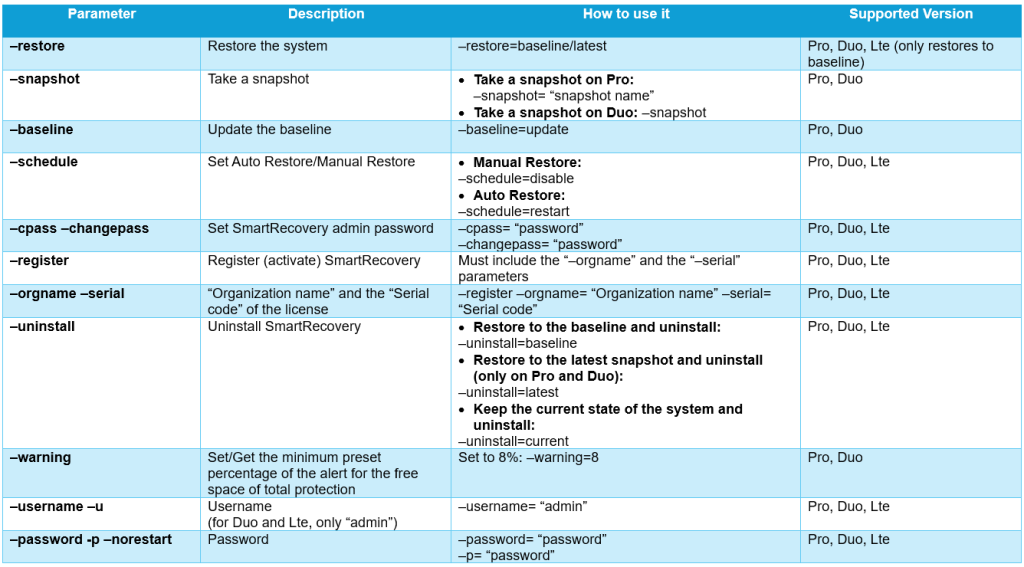
Examples of Using the Command Line Tool
Here are some examples of the command-line tool that implements these switches.
For the username and password, we will use "admin" and "1234", respectively.
First example: To restore to the latest snapshot (username: admin; password: 1234):
srcmd.exe –restore=latest –u=admin -p=1234
Second example: To take a snapshot of the system:
For the Pro version of Smart Recovery: srcmd.exe –snapshot= “snapshot name” –u=admin -p=1234
For the Duo version of Smart Recovery: srcmd.exe –snapshot –u=admin -p=1234
Third example: To change the admin password on Smart Recovery:
This will change the password from "1234" to "12345678":
srcmd.exe –cpass=12345678 –u=admin -p=1234
Fourth example: To set the restore schedule to “Restore at every restart”:
srcmd.exe –schedule=restart –u=admin -p=1234
Fifth example: To register (activate) Smart Recovery:
In the example below, the organization registering Smart Recovery is "org name", and the Activation Code is "XXXXXXXXXXXXXXXXXXXXXXXXX".
srcmd.exe –register –orgname= “org name” –serial= ”XXXXXXXXXXXXXXXXXXXXXXXXX”
Sixth example: To uninstall Smart Recovery and keep the current system state (without restoring to a previous state):
srcmd.exe –uninstall=current –u=admin -p=1234