Overview
The Views repository item option is a specialized type of kiosk setting. With it, you can specify a list of allowed apps for a remote Android device as well as a single web app URL. For example, you can use the Views command to play a web app consisting of a video that plays in a loop or a particular website that advertises a product.
Accessing the Views Command
There are four methods to access the Views command:
Method 1: From the Sidebar Menu:
1. Click on Configuration>Views in the sidebar menu.

2. The Views window opens, showing stored Views options.
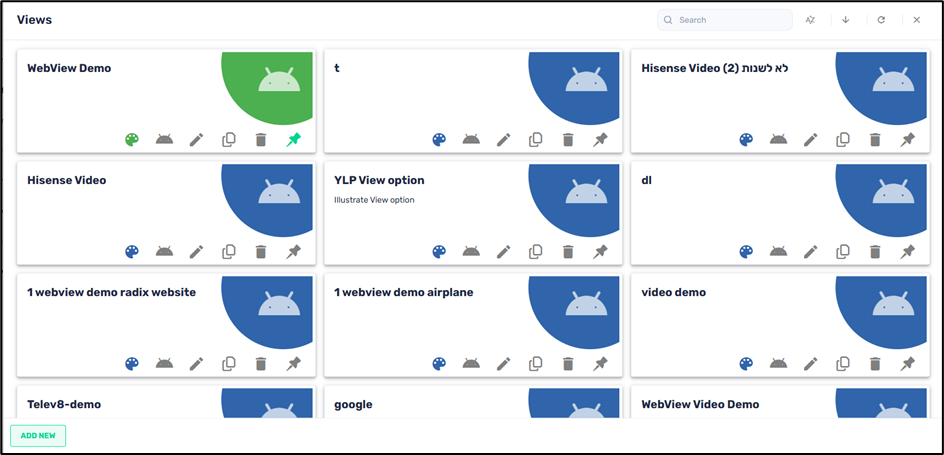
Note: You will only be able to view, edit, and create Views options when opening the Views window from the sidebar menu commands. If you wish to actually send a Views option to a remote device, you must use Methods 2, 3, or 4.
Method 2: From the Bulk Actions Button:

1. Click on the Devices icon in the sidebar menu:

2. Select the device(s) to which you would like to send a View option by clicking on the checkbox in the column on the far left.
Note: This method will allow you to apply a View option to many devices simultaneously by clicking the checkboxes of several devices.

The Bulk Actions button becomes active.
3. Click on Configure>Views:

The Views window opens, showing the repository of stored Views items, as above in Method 1.

Method 3: From the Device’s Kebab Menu:
1. Click on the Devices icon in the sidebar menu of the Overview Dashboard.
2. From the Devices Table, find the device to which you would like to apply the View option, and click on the three-dot (Device Options) menu in the far-right column:

3. Click on Configure>Views to open the Views repository:

The Views window opens, showing the Views options, as above in Method 1.
Method 4: From the Device Dashboard:
1. Click on the Devices icon in the sidebar menu to open the Devices Table.
2. Find the device to which you would like to apply a View option and click anywhere on the line of that particular device.

The Device Dashboard opens.
3. On the right-hand side of the screen, click on Repositories Actions, and select Views, to open the Views window, and display the Views options, as in Method 1.

Creating a New View Option
When you click on the Views command using one of the four methods outlined above, the Views window opens.
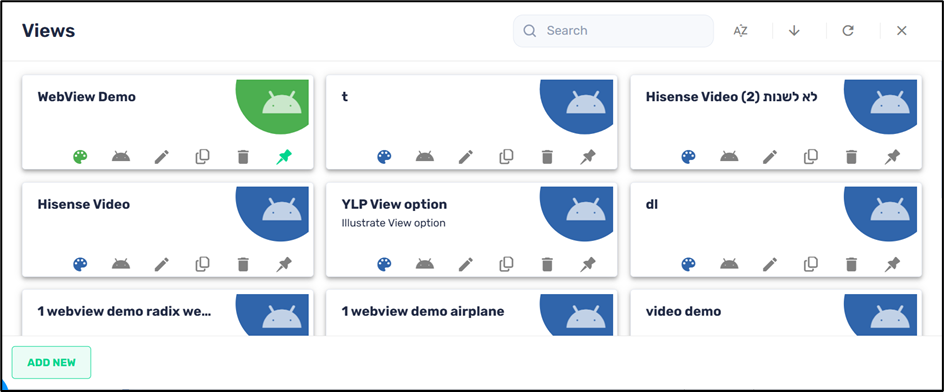
To create a new View option:
1. Click on the Add New button at the lower left corner of the “Views” screen. The “New View” screen opens.
2. Assign a name and description to the new View option.

3. Click on the Set as private button if you want this new View option to be visible only to you (the creator of the item) when you log in to the Radix Device Management Platform.
4. Click on Hide content from others if you want to allow others to use the View option, while preventing them from seeing or editing its content.
5. Click on the Set as read-only button if you want to limit who can edit this View option. Anyone with Administrator privileges can edit it, while someone with only User privileges can only access it and use it, but cannot edit it. When you click on Set as read-only, you will see the lock icon at the top of the screen turn to a “locked” position.
6. Click on the Allow list icon and select the apps that you would like to allow on the remote device.
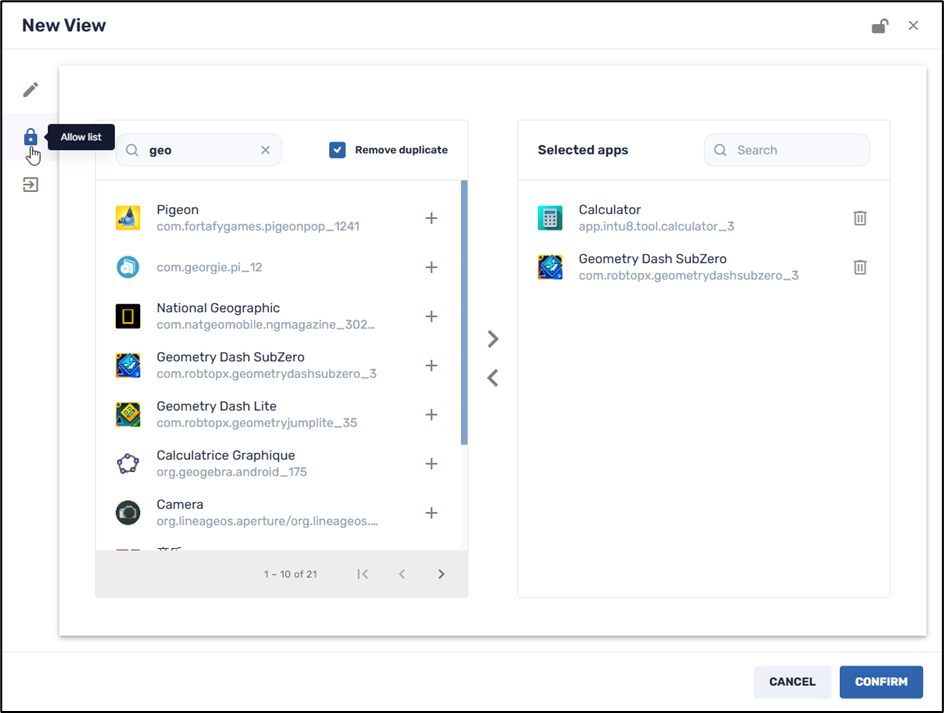
7. Click on the Web app icon and provide a Web app URL in the textbox.

8. Click on the hyperlink for information about using a URL with advanced parameters.
9. Click Confirm. The new View option will now appear in the Views Repository.

Applying a View Option
1. When you click on the Views tile, the Views options will appear.
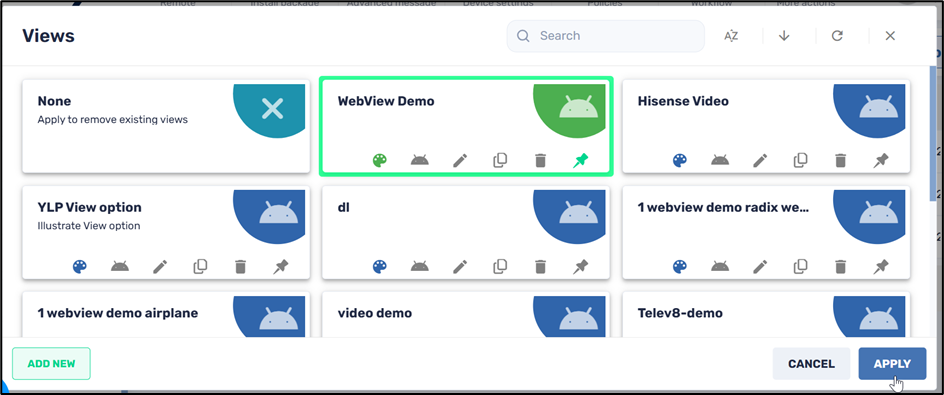
2. Click on one of the Views options to select it, and then click Apply. In our example, we selected the WebView Demo option.
The View option that you selected will be displayed on the device automatically.

3. After applying a View option to a device, there will be an indication in the Devices Table that the device is presently in “View” mode. In the example below, we see that the Hisense Video view option has been applied to the device HA195F3Y.

Removing a View Option from a Remote Device
The remote device will be limited only to the selected apps and a website associated with that View item for the duration of the time that you have applied that View option. If you want to use the device for other apps, you will have to remove the View mode that you have applied to the device. This can only be done from the Radix Device Management Platform.
To remove a View mode:
1. Select the Views command tile. The Views window opens.
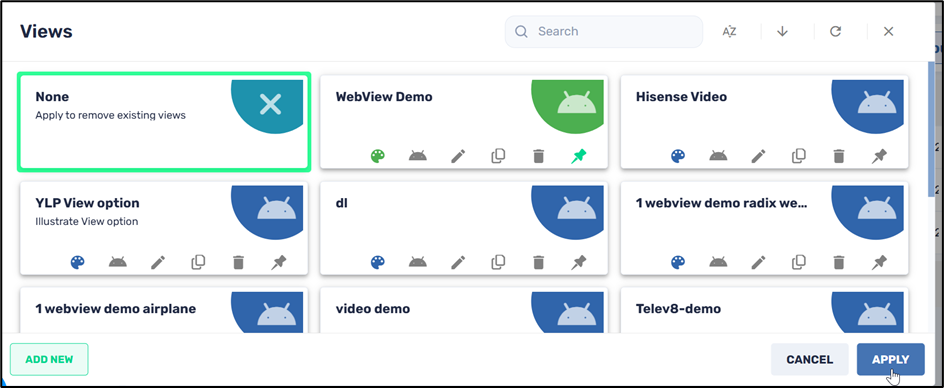
2. Select the None option and click Apply. The Views option will be removed, and the device will now revert to full functionality again.